7 Canva Secrets Every Teacher Should Know
Michelle Hollander
Director of Educational Content
News
Are you looking to take your Canva practice to the next level? Here’s the “inside scoop” on how to curate high-impact materials that resonate with students! With these tips and tricks, you can streamline your workflow and empower creativity using Canva’s cutting-edge abilities. Here are seven Canva secrets every teacher should know!
-
Create with canva.new
Want a quick way to save a little time? Bypass the Canva homepage and launch a blank canvas instantly by typing canva.new into the address bar.
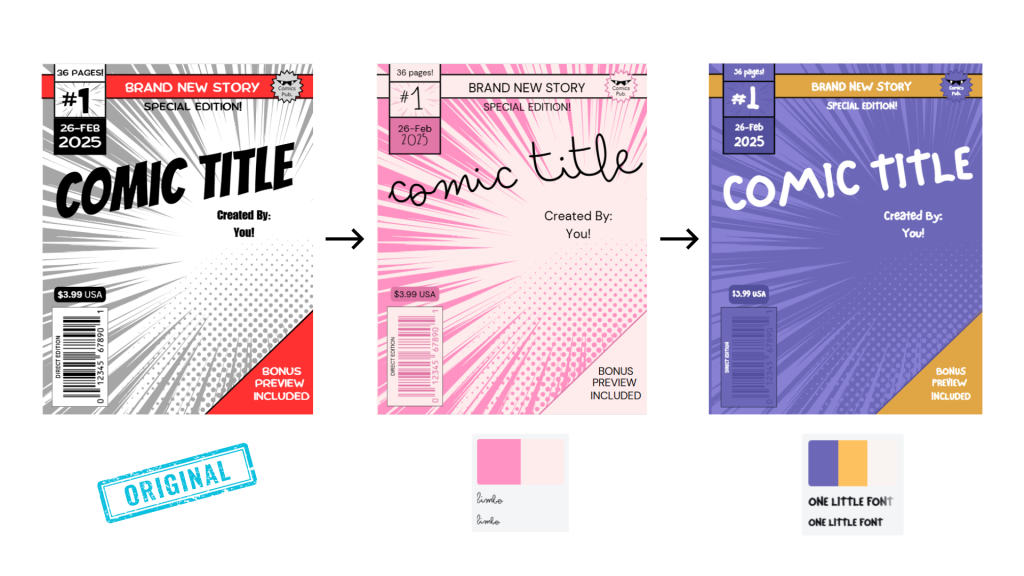
Style match any template
With a single click, you can extract colors and fonts from one design or brand kit and apply them to a new template. Also, if you have an image that you love, you can right-click it, select “Apply colors to page,” and instantly generate a palette based on that image.
Give live feedback with the Classwork Section
Not only can you review completed student work, but you can monitor student progress in real-time. If desired, you can also leave stickers as feedback on their designs. This section keeps a version history so you can see the evolution of students’ thought processes.
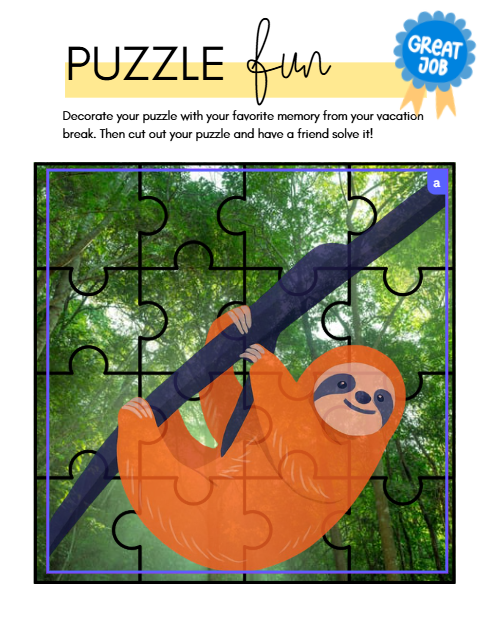
Embed projects into new designs
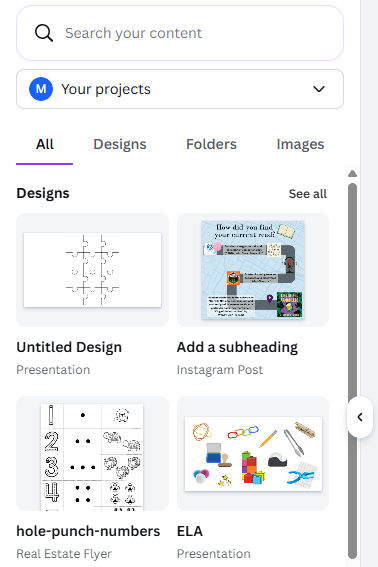
Gone are the days of manual copying and pasting! Did you know that you can treat previous designs as “smart objects” and use these components in new projects? Additionally, when you search for your “Projects” folder within Canva’s editor, you can import either a single page or the entire deck as an embedded element.
Record with Canva Studio
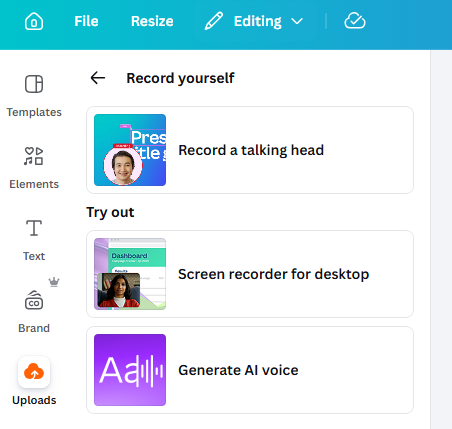
Head to the Uploads section, located on the sidebar, where users can capture their screen, camera, and microphone simultaneously to create “talking head” style presentations. You can even generate an AI voice! These tools bring differentiation to the next level!
Customize designs further with tools and apps
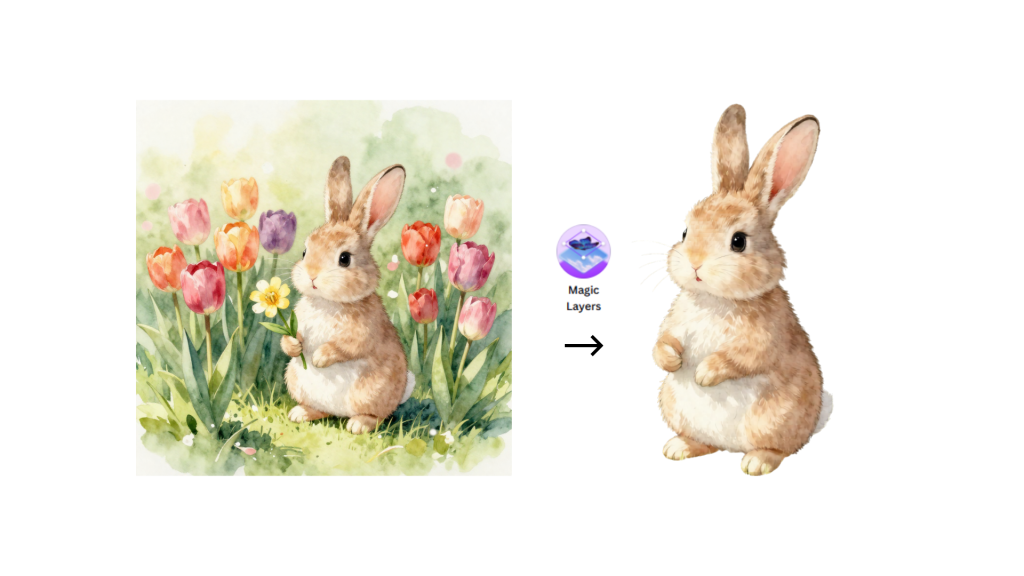
You can find internal and third-party integrations that expand capabilities with AI image generation and data visualization. Canva’s magic tools range from “Magic Edit” to “Magic Layers.” These innovative features allow you to modify and personalize images like never before.
Continue learning with Design School
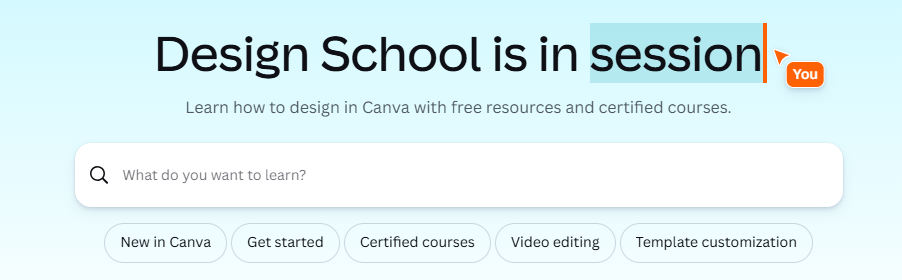
Learning never stops! Explore Canva’s educational hub to find structured courses, tutorials, and even live events! Canva’s built-in AI tools can also support you whenever you get stuck!
Want to see all of this in action? Check out our engaging course, 7 Canva Secrets Every Teacher Should Know, on OTIS for educators! (You might even come away with more than 7 new ideas to try!)
For more tips, tricks, and tools for teaching in and out of the classroom, check out more content on the Teq Talk blog or our YouTube channels OTIS for educators and Tequipment.
We also offer virtual professional development, training, and support with OTIS for educators. Explore the technology and strategies that spark student success — no matter where teaching or learning are happening!
Follow us on social:
 edteq
edteq  OTIS4educators | Teq Products | iBlocks
  MyTeq
MyTeq  Teq
Teq
Related Articles & Other Recommended Reading

Bridging the Gap to Successful Project-Based Learning with Inspirit
There is no better way to complement your Project-Based Learning (PBL) initiatives than by creating engaging and interactive experiences in virtual reality (VR). VR provides users with a computer-generated simulation of a 3D image or environment that can be interacted with in a seemingly real and physical way. Inspirit offers user-friendly, innovative VR headsets that […]

Teq is Headed to FETC!
Teq is off to the 2026 Future of Education Technology Conference (FETC)! Being held from January 11th to January 14th, 2026, this top-notch event is being hosted at the Orange County Convention Center in Orlando, FL! Demo innovative products, grab some swag, or say hello to the team at booth #2730. Tune in to interactive […]

Introducing the New AI Literacy and Instruction Micro-credential!
The landscape of K-12 education is rapidly evolving, driven by the emergence of Artificial Intelligence. Educators and administrators need more than just introductory knowledge; they need a structured, practical path to mastery. We are excited to announce the launch of the AI Literacy and Instruction Micro-credential Playlist! This comprehensive, seven-session video series is designed specifically […]