5 Classroom Management Tricks: Low Tech to No Tech
Rebekah Corace
Curriculum & PD Specialist
News

Classroom management is often associated with rules, consequences, and “dos and don’ts.” However, it is so much more than that! At its core, classroom management is about building strong relationships with your students. It is encouraging them to be active, productive members of a classroom community. A strong classroom culture based on trust, respect and allows students to grow. Students are also less likely to be disruptive when they feel supported and connected to their teacher. Read on for five classroom management tricks, low tech no tech!
Benefits of strong classroom management
As educators, we know that classroom management is an essential, if not the most important component of teaching. Effective classroom management ensures that students are aware and clear about what is expected of them when they enter your classroom. When a teacher has clear expectations and structure, students are going to be more engaged and have more time to do deep-thinking work. The beginning of the school year is a perfect time to add some new ideas to your tool-kit! These will help set norms and expectations for classroom management for the year ahead. Dive in to these low-tech to no-tech solutions!
Trick #1: Taking attendance with QR codes
Taking attendance is a necessity, but can often be forgotten. If you are not careful, it can turn into unstructured downtime where students are not focused while you’re preoccupied. This is where Google Forms come in! Take the work out of completing class attendance by making a Google Form that students can access by scanning a QR code to take their own attendance. Using this low-tech trick will help you track who was on time, late, or absent. You can also customize the form to include the daily do now. Additionally, you can add a wellness check to gauge how your students are doing on a particular day.
Once you create the form, right click and create the QR code for the page. Then, create a sign and display the QR code outside the door to your classroom for students to scan as they enter. If students do not have a cell phone or are not allowed to use their personal devices, put one laptop in a designated area of the room for students to check in daily. They can also use a school sanctioned device at their desk. You can then export the tracked attendance data, do nows, and wellness checks into a Google Sheet or Excel spreadsheet. This allows you to easily see the data and share it with other teachers on your team.
Trick #2: Randomizer apps
One of the most time-consuming tasks for teachers, especially when you do not know much about your students yet, is creating groups. Randomizer apps are an excellent solution for this! Two free apps that are great to use are Pick Me and Popsicle Sticks. Using these apps as a method of classroom management allows you to integrate technology in your classroom in a fun way. This is sure to not only help you as the teacher, but engage your students in the process.
Pick Me
The Pick Me app allows you to input your class list and spin a wheel to randomly select students’ names. It also has the option to select random numbers and a variety of other fun lists like colors, dice, movie genres, cities to visit, and more. Additionally, you can do “rock, paper, scissors,” a draw (yes/no), coin toss, or generate a random number. Not only can you use this app to help you with classroom management, but it is perfect for teaching probability!
Popsicle Sticks
Popsicle Sticks is a free app that is perfect for using in addition to or in lieu of the traditional cup of popsicle sticks in the classroom. With this app, you are able to import and save your class lists, alphabetize class and student names, get birthday reminders, and take attendance! Once you upload your classes, you can choose to select one random name at a time. The name will not only appear on the screen, but the app will say it out loud! You can also create and save multiple random lists and export. This is very helpful for when you are doing quick groupings and for when you find groups of students who really work well together.
All of these lists can be saved and used again in the future by using the “custom groups” option. Additionally, you can create random groups of 2, 3, 4, or 5 and create round-robin pairings. This app is also a great tool to use as a way to score a debate/discussion in the classroom, track student participation, give points/grades, create tournament games, save scores, and conduct icebreakers! I highly encourage you to download the app and explore the tools available to create.
Trick #3: Interactive do-nows
The ability to engage students right from the beginning of class is a crucial for effective classroom management. You want to decrease the amount of down-time students have. This results in off-task behavior and a lack of engagement overall. To ensure that students are participating right from the start of class, assign an interactive do-now.
Building relationships is crucial for behavior management. Putting up a fun, non-academic prompt on the board for students to respond to in the first few minutes of class will engage them right away. It will allow you to get to know them as individuals. After students respond, choose some at random to share. Another idea is to choose two students right at the start of class. I would select the first two students to enter the classroom. Give a timer to the first student. Then, give the second student a pen/stamp to correct student homework/do now during the first five minutes of class.
Another idea is to give students the opportunity to select popsicle sticks or use a randomizer app to assign roles to their peers for the class period, depending on who gets to the classroom first. This promotes excitement and encourages students to get to class on time. Students will arrive hoping to be chosen for a role and prepare to engage in the activity.
Lumio for “Do Nows”
In addition to the no-tech options, a great low-tech option is to use Lumio to create an interactive do-now. Lumio is a web-based software that allows teachers to create interactive and engaging content for students. Students can access and interact with the lessons as a whole class, independently, or remotely.
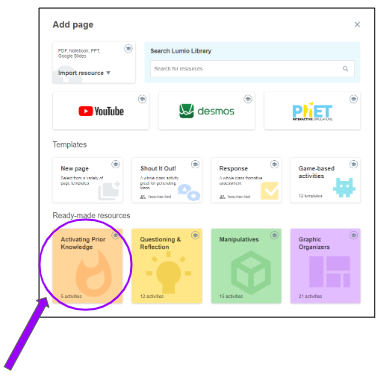
To create interactive do-nows for your class, simply select, “New” then, “Activating Prior Knowledge” (see image below) under “Ready-made Resources” and select the entrance ticket option. There are also other options there that can be used as a do-now as well. This allows students to engage right away and allows the teacher to see what each student is contributing. You can choose to show or hide students’ names on the board while still being able to identify who contributed what. 
Trick #4: Interactive lessons with Kahoot and Lumio
In addition to using Lumio for do-nows, you can use it to create interactive lessons. In Lumio, you can import slides from Powerpoint, Notebook files, and PDFs. For those of you that use Google Workspace, any Google Slides you have created can be saved as a PDF for you to easily upload into the platform! The same is true for Kahoot, which also has similar options to turn static presentations into engaging and interactive lessons. The only difference is you can import Keynote files instead of Notebook files.
The options for interactive lessons on Kahoot include quizzes, polls, true/false, word clouds, open-ended questions, and puzzles. These components can be placed at any point in the presentation. In Lumio, options for interactive lessons include a shout-it-out activity, response, game-based activities, graphic organizers, manipulatives, activating prior knowledge activities, and questioning and reflection activities. Before diving in, keep in mind to edit any presentation/file before uploading to either Kahoot or Lumio. While both of these sites are great for interaction, they do not have the same capabilities for editing the documents.
Trick #5: Using timers to maximize student work time
The last trick I want to leave you with is the importance of using timers in the classroom. Time is such a precious commodity as a teacher. Being able to harness the time goes a long way in helping with classroom management and keeping students engaged. Using timers allows you to set and maintain consistent expectations and routines in the classroom. Timers allow you to maximize both instructional and independent work time in the classroom as well. Using timers during instruction is also beneficial to see how much work a student can complete during a predetermined amount of time. It’s also a great way to begin to prepare students for timed assessments.
In my classroom, I typically used a traditional kitchen timer that I would put on the front board. This allowed students the opportunity to take control of the timer and utilize it as well. If you prefer, there are several great digital timers on the web. Time and Date, Timer-tab (Google’s digital timer), and Timerq are three of my favorites. If you have a SMART Board in your classroom, there is a built-in timer on the board you can use as well!
More from OTIS
Making sure you are aware of time as a teacher and setting students to be aware of time as well can set clear expectations, promote urgency, and emphasize the importance of doing work in a timely manner. I hope that you were able to take away some new ideas and inspiration. Teaching isn’t about reinventing the wheel. Sometimes, you just need to be reminded to get back to basics and be given a few new tips and tricks to help you start the year off strong!
Be sure to check out our accompanying OTIS course, 5 Classroom Management Tricks: No Tech to Low Tech. We have many other Classroom Management courses in the OTIS Course Library.
For more tips, tricks, and tools for teaching in and out of the classroom, check out more content on the Teq Talk blog or our YouTube channels OTIS for educators and Tequipment.
We also offer virtual professional development, training, and support with OTIS for educators. Explore the technology and strategies that spark student success — no matter where teaching or learning are happening!
Follow us on social:
 edteq
edteq  OTIS4educators | Teq Products | iBlocks
  OTIS4educators | MyTeq
  Teq
Teq
0 thoughts on “5 Classroom Management Tricks: Low Tech to No Tech”
Related Articles & Other Recommended Reading

Bridging the Gap to Successful Project-Based Learning with Inspirit
There is no better way to complement your Project-Based Learning (PBL) initiatives than by creating engaging and interactive experiences in virtual reality (VR). VR provides users with a computer-generated simulation of a 3D image or environment that can be interacted with in a seemingly real and physical way. Inspirit offers user-friendly, innovative VR headsets that […]

Teq is Headed to FETC!
Teq is off to the 2026 Future of Education Technology Conference (FETC)! Being held from January 11th to January 14th, 2026, this top-notch event is being hosted at the Orange County Convention Center in Orlando, FL! Demo innovative products, grab some swag, or say hello to the team at booth #2730. Tune in to interactive […]

Introducing the New AI Literacy and Instruction Micro-credential!
The landscape of K-12 education is rapidly evolving, driven by the emergence of Artificial Intelligence. Educators and administrators need more than just introductory knowledge; they need a structured, practical path to mastery. We are excited to announce the launch of the AI Literacy and Instruction Micro-credential Playlist! This comprehensive, seven-session video series is designed specifically […]