5 Easy Steps To Creating Name Tags In Canva
Lindsey Merrow
Curriculum Specialist
News
As educators, our spare time is precious and infrequent. I, personally, relished any time-saving tips I could gather for my classroom. One thing I was always trying to figure out was a new way around having to constantly replace my students’ disheveled name tags. Over time, the students would write on them, pick at them, and even peel them. They would become more of a distraction than anything, and of course, they would all (at different times) need to be replaced, meaning I’d have to either purchase, print, or recreate new name tags at various points throughout the year. I loved using them though, as they’re super helpful for when I had a substitute teacher who could address all of my students by name. All of my fellow elementary school teachers can probably relate.
Here at OTIS, we love Canva for so many reasons, but I have discovered one more! There is a super easy, quick way to create all of your customized name tags in bulk! I love how simple and efficient it is to create these. It’s given me so many new ideas; like printing new ones for each new theme or topic in the classroom, or maybe even aligned with different holidays!
Canva is an amazing tool that comes with so many options and templates to choose from. You can choose from any one of their templates, customize one, or just build your own. The best part about Canva? It’s free for educators! If you haven’t already, sign up for your free account today and check out any of our Canva courses and blogs to get you started with using this incredible tool.
Follow along with these easy steps for creating all of your name tags with one click while having fun in the process!
Step 1: Choose your template in Canva
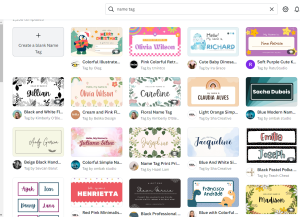
When you use the search bar at the top of the Canva homepage (web or app), and type in “name tag,” you will get over 1500 templates to choose from. Additionally, as previously mentioned, you also have the option to create your own from scratch. Once you find the one you like, simply click it and choose “customize this template.”
Step 2: You will need a .csv file with your students names
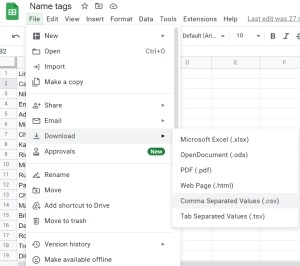
Most Learning Management Systems (LMS), will offer you an option to download your class roster for a more convenient way to do this, however, you can also manually enter your class list into a spreadsheet. If you’re in a Google district, use Sheets. If you’re in a Microsoft district, use Excel. If you’re downloading it from a LMS, download it as a .csv file. This will more than likely be your default download option. For elementary teachers, you will likely use one list in the spreadsheet for your student roster. If you would like to try this for secondary, I would recommend creating a new list for each period/block you teach. Once you have created this spreadsheet, just download it as a .csv file.
Step 3: Bulk create in Canva
This will be the hardest part of this process, but follow along with these picture guides for an easier process! The next step is, when you are in Canva, look on the left hand side of the screen for “Apps.” Once you click on “Apps,” you’re going to look for the “Bulk create” option about halfway down the page. Click on that and we are going to select “Upload a CSV file.”
Step 4: Upload your spreadsheet
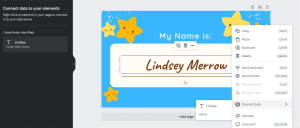
Once you choose “Upload a CSV file,” the menu will pop up to locate your spreadsheet and upload it. Once you locate and upload it, your screen will look like this:
Step 5: Connect the data
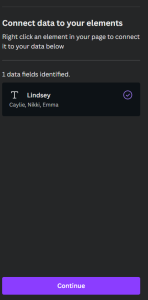
You will need to right click on the name you already have in the name tag and choose the option for “connect data.” Choose the name that pops up in the sub menu and then click “Continue” on the left side of your screen. It will look like this:
Once you click continue, all of the names from your spreadsheet will appear. You will then click “Generate ___ pages” (however many names that are in your spreadsheet will be the amount of pages generated).
That’s all it takes! All in all, it’ll take just a few moments to create brand new name tags for your whole class. Enjoy, and if you have any questions, you can always click the “Ask OTIS” button on the OTIS website, and a member of our team will be happy to help you! Be sure to check out some of our courses on Canva in the Course Library for more tips and ideas on using Canva in your classroom!
For more tips, tricks, and tools for teaching in and out of the classroom, check out more content on the Teq Talk blog or our YouTube channels OTIS for educators and Tequipment.
We also offer virtual professional development, training, and support with OTIS for educators. Explore the technology and strategies that spark student success — no matter where teaching or learning are happening!
Follow us on social:
 edteq
edteq  OTIS4educators | Teq Products | iBlocks
  OTIS4educators | MyTeq
  Teq
Teq
0 thoughts on “5 Easy Steps To Creating Name Tags In Canva”
Related Articles & Other Recommended Reading

Bridging the Gap to Successful Project-Based Learning with Inspirit
There is no better way to complement your Project-Based Learning (PBL) initiatives than by creating engaging and interactive experiences in virtual reality (VR). VR provides users with a computer-generated simulation of a 3D image or environment that can be interacted with in a seemingly real and physical way. Inspirit offers user-friendly, innovative VR headsets that […]

Teq is Headed to FETC!
Teq is off to the 2026 Future of Education Technology Conference (FETC)! Being held from January 11th to January 14th, 2026, this top-notch event is being hosted at the Orange County Convention Center in Orlando, FL! Demo innovative products, grab some swag, or say hello to the team at booth #2730. Tune in to interactive […]

Introducing the New AI Literacy and Instruction Micro-credential!
The landscape of K-12 education is rapidly evolving, driven by the emergence of Artificial Intelligence. Educators and administrators need more than just introductory knowledge; they need a structured, practical path to mastery. We are excited to announce the launch of the AI Literacy and Instruction Micro-credential Playlist! This comprehensive, seven-session video series is designed specifically […]